Screen Management
Display Properties
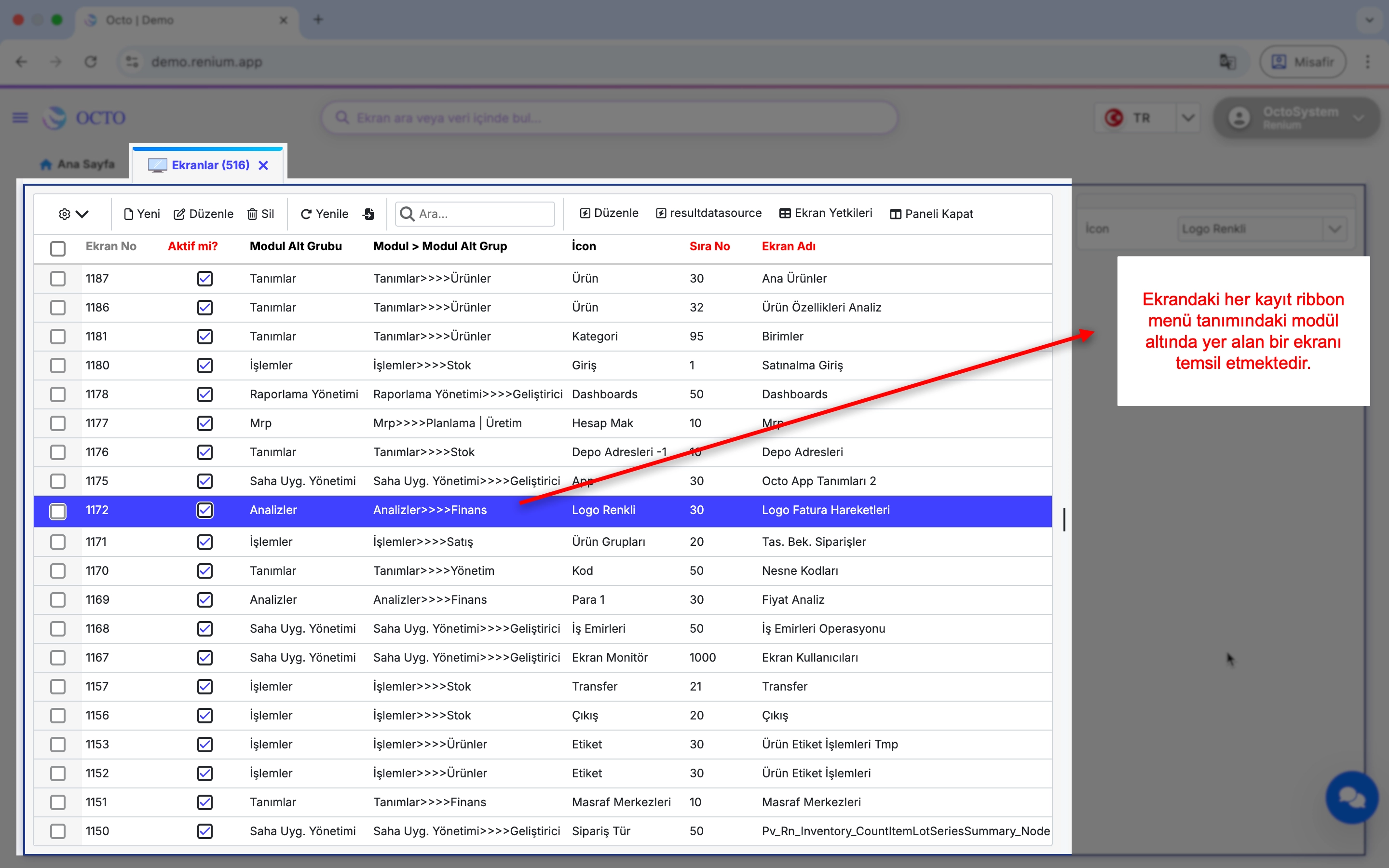
The fields listed below are mandatory for all screen types. Their descriptions are as follows:
- Active: Records marked as inactive will not appear in the menu. The checkbox must be selected for the screen to be visible.
- Module Subgroup: Determines under which module and subgroup the screen will appear in the menu. If the required value is not available in the list, you can open the definition screen via the
...button and add the necessary definition. After completing the definition, select the appropriate value in the screen setup. Every module must have at least one submodule. Since the module information is already included in the Module Subgroup definition, selecting a module separately during screen definition is not required. - Order No: Specifies the order in which the screen will appear within its module.
- Screen Name: Defines how the screen will be displayed in the menu.
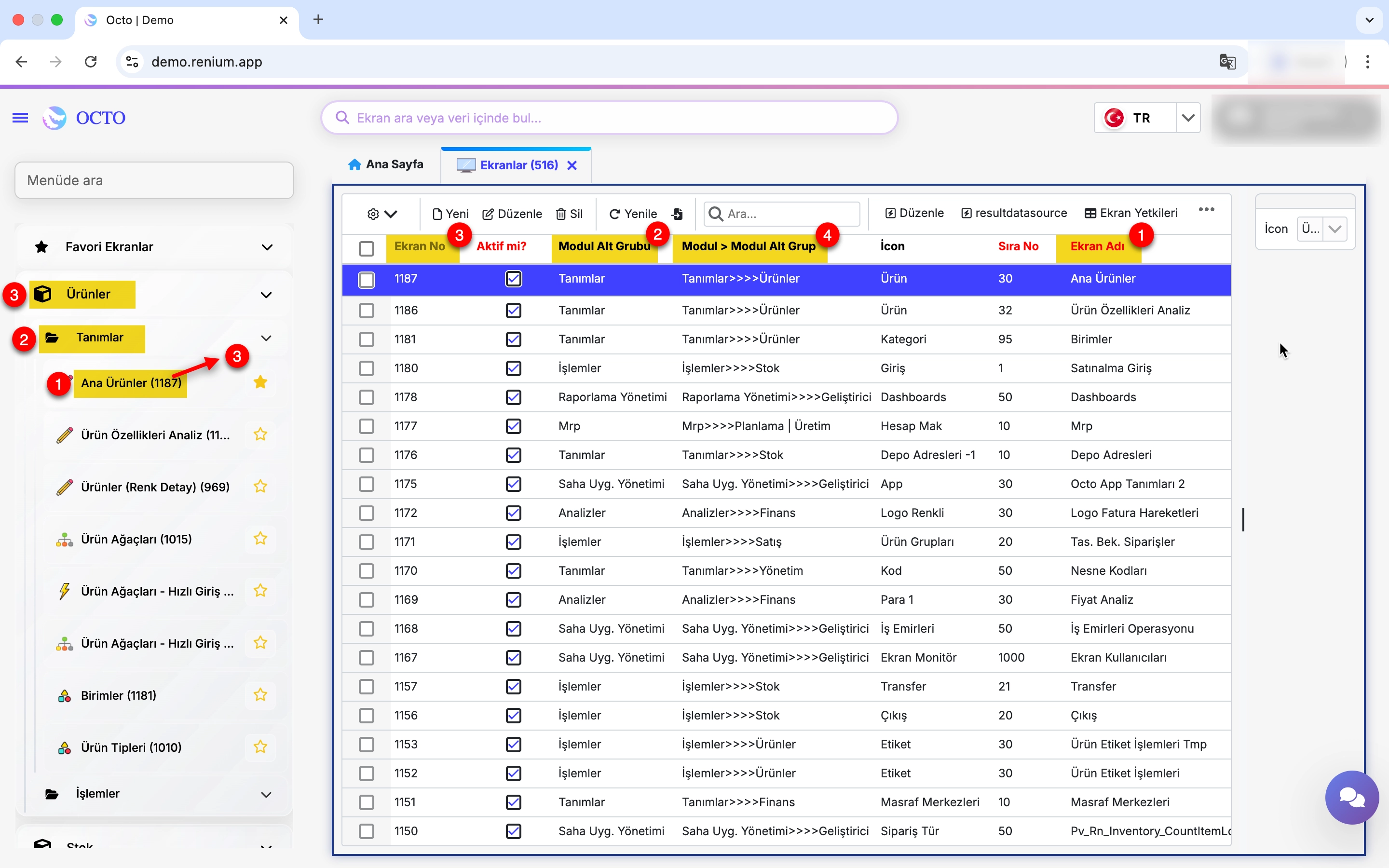
- Icon: Specifies which icon will be displayed for the screen in the menu. If the desired icon does not exist, it can be added via the icon definition screen. Icon images must be uploaded in
.png/.jpg/.jpegformat in sizes 16px and 32px.
Screen Types
Screen Types are predefined screen structures designed to serve different purposes within the system, helping you perform your tasks more efficiently. When creating a screen, the Screen Type parameter determines both the visual layout and the functional behavior of that screen.
In other words, the structure and capabilities of a screen are shaped based on the selected screen type.
frmDetailObjects
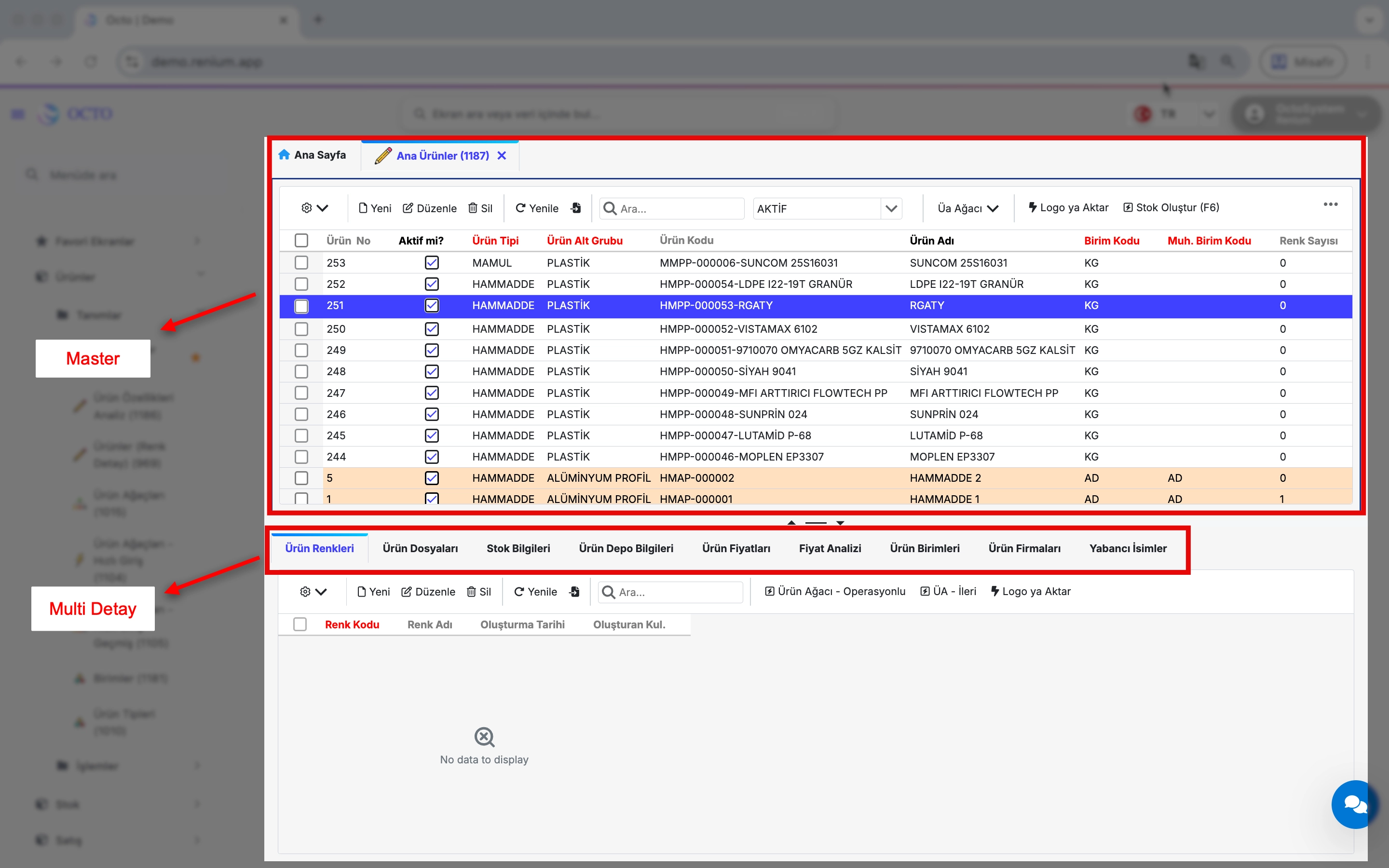
It can also be defined as a Master–Multi Detail screen. It is formed by combining one Master screen with one or more Detail screens. This type of screen is used to display and manage sub-details that are linked to a main record.
Example: Main Products screen.
frmAnaMenu
This screen type represents the main menu structure of the system. The screen name defined for frmAnaMenu appears as the section title in the top menu. It is generally recommended to use the project or organization name in this area.

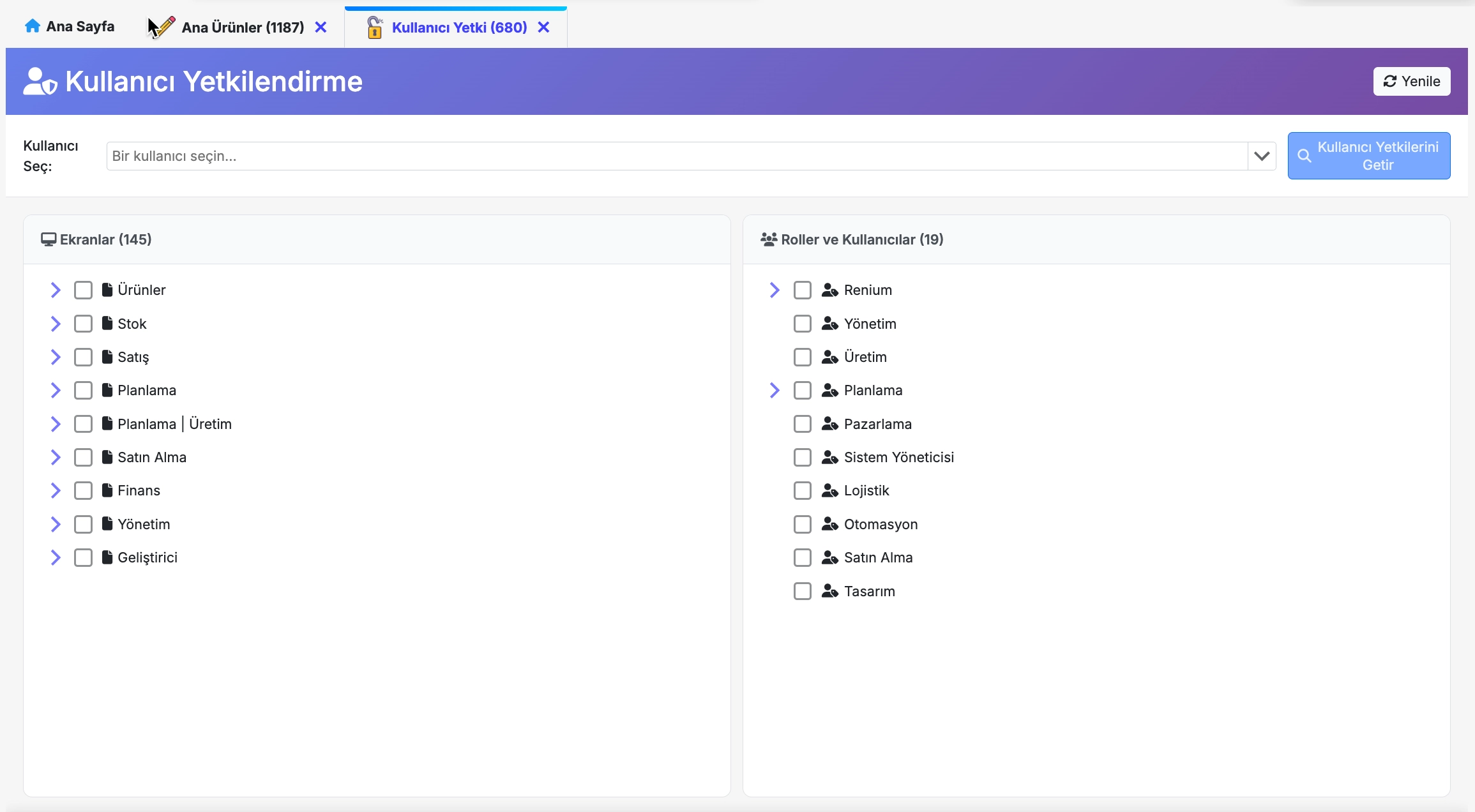
frmYetki:
This screen type is used for configuring system-wide authorization and access settings. Roles, users, and access permissions are defined through this structure.
Master/Detail (When Empty)
When the screen type field is left empty, you will encounter two scenarios:
1. Selecting Only the Data Object: If you leave the screen type empty and select a Data Object, the database objects of type table and view will be displayed on your screen. Making a selection this way will create a Master screen.
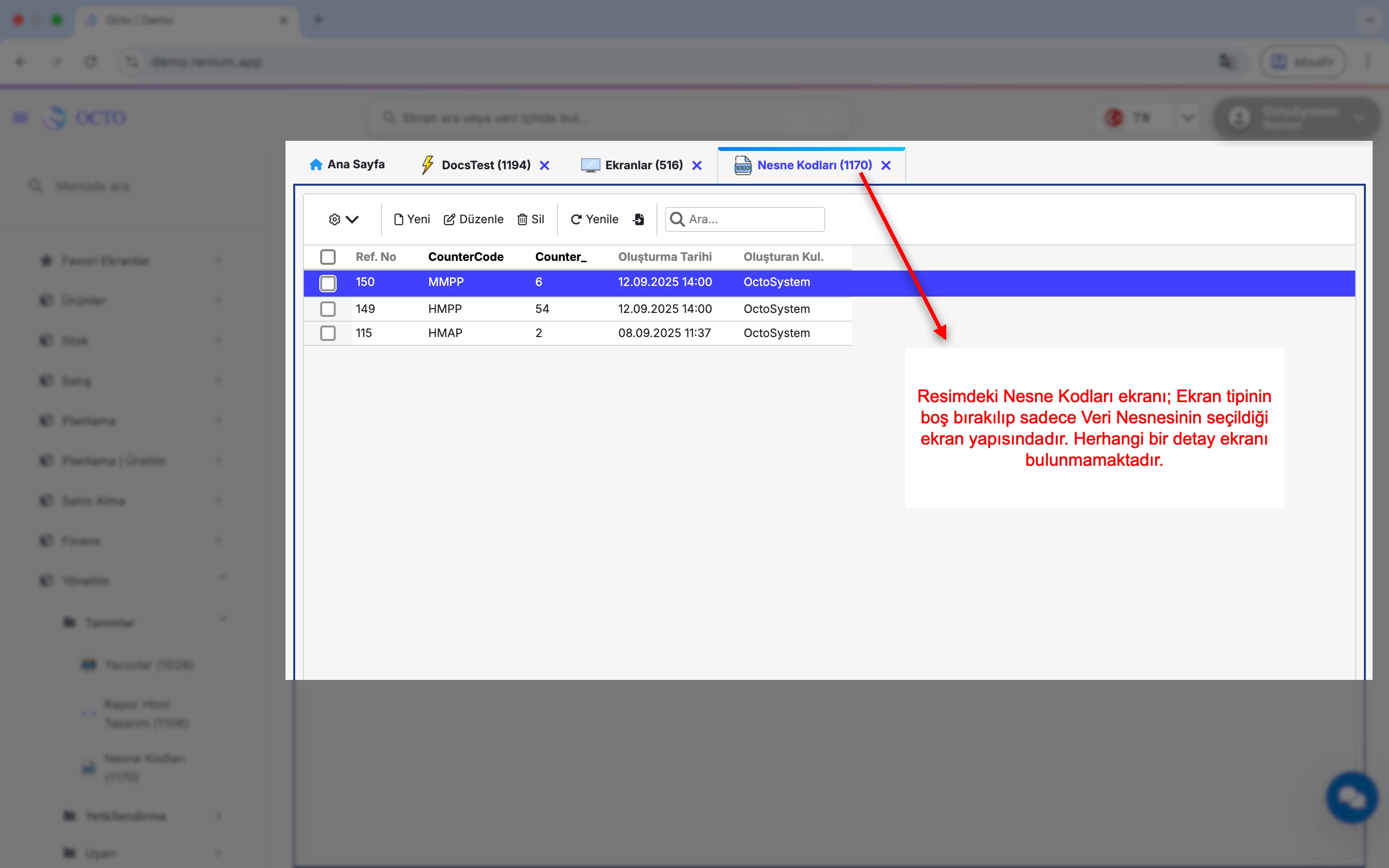
When the system screen is clicked, it will execute the following and display the returned data for the detail screen.
SELECT * FROM [VeriNesnesi]
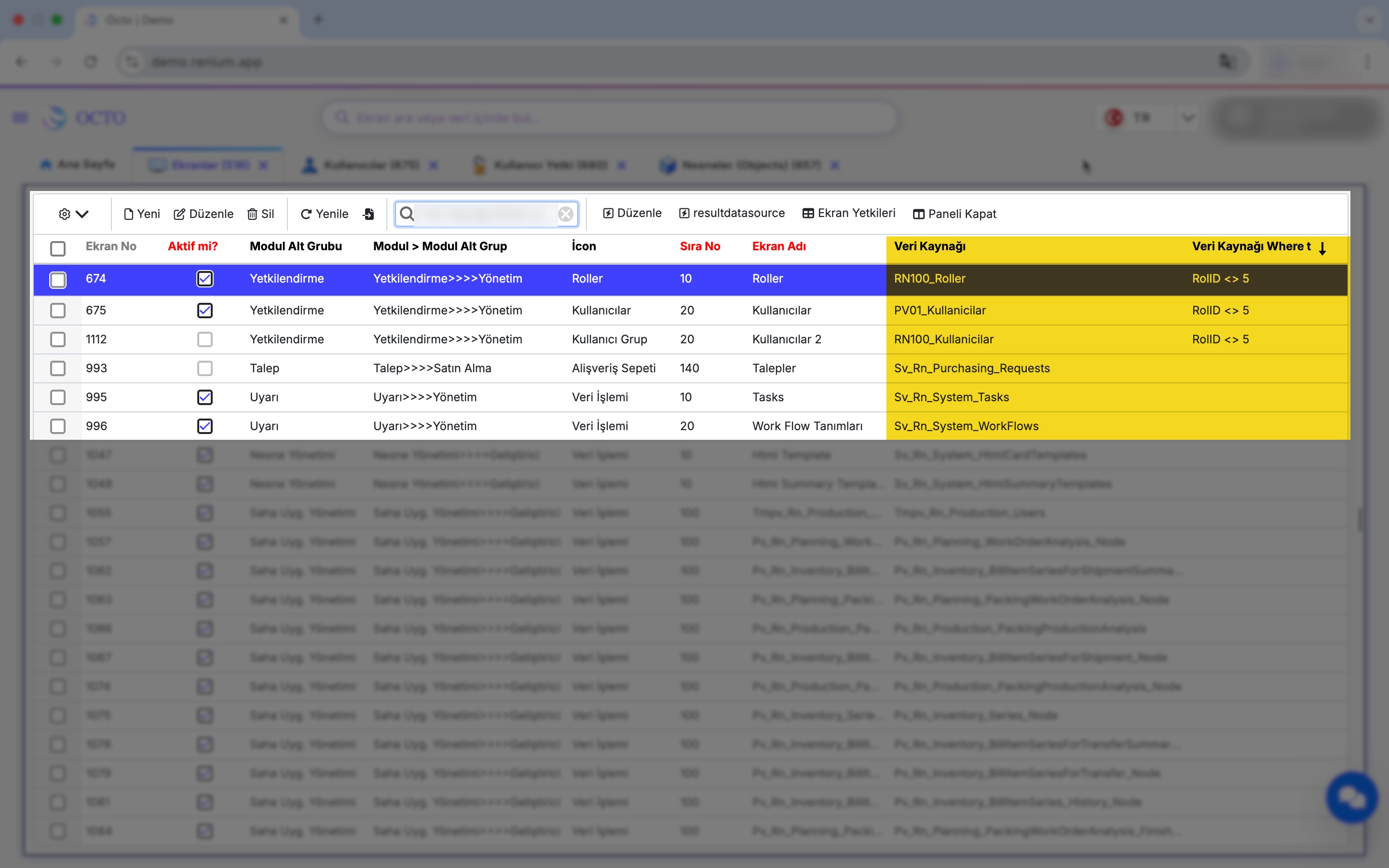
- Master Where Text: The object defined in the Data Object field will open with the filter defined at screen initialization.
When the system screen is clicked, it will execute the following query and display the returned data.
SELECT * FROM [VeriNesnesi] WHERE [MasterWhereText]
2. Selection of Data Object and Detail Data Object: If the screen type is left blank and both the Data Object and Detail Data Object are selected, a Master screen will be created for the Data Object and a Detail screen will be created for the Detail Data Object.
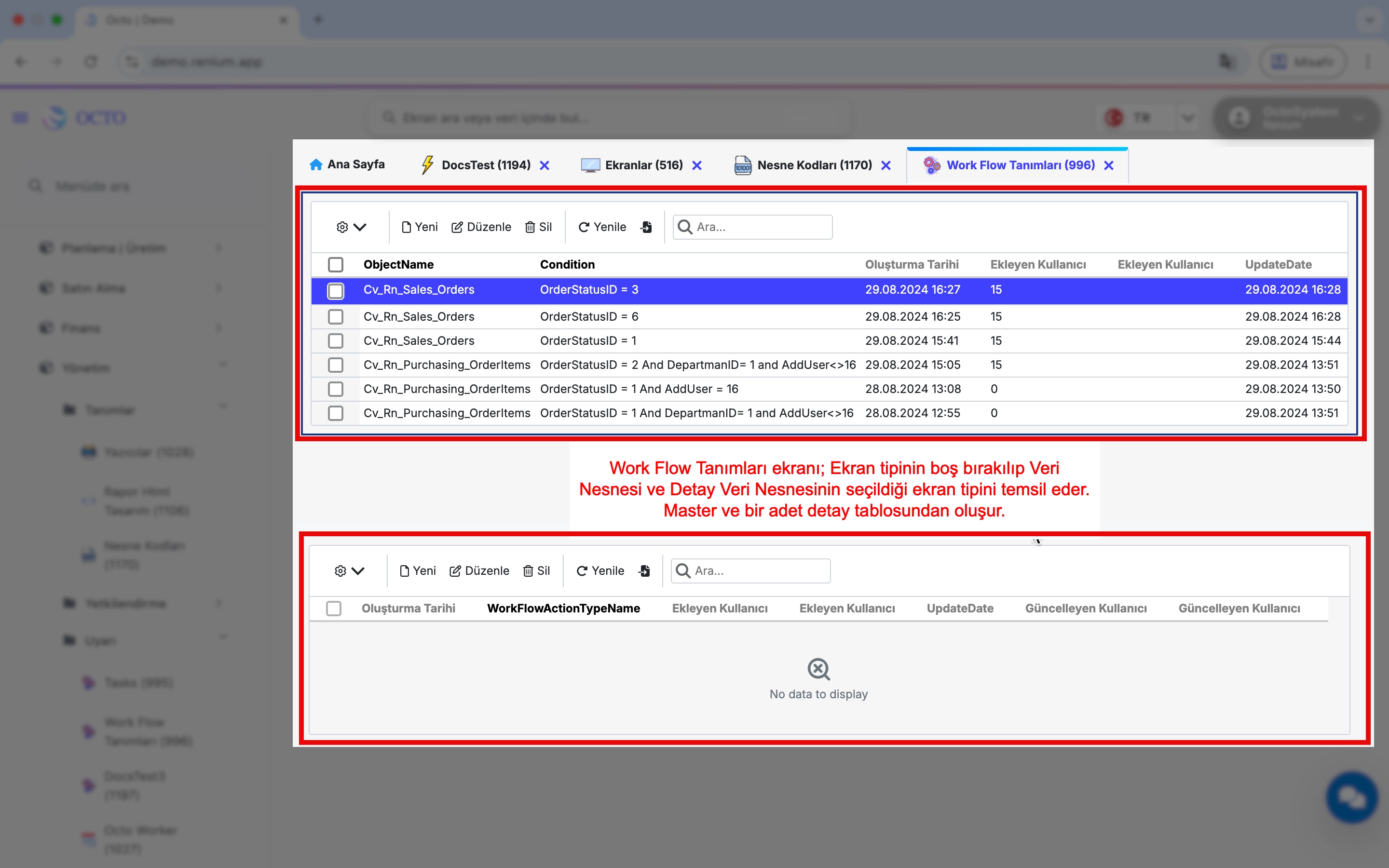
When the screen is clicked, the system will execute the query below and display the returned data in the detail screen. The primary key (PK) field of the Data Object (the first field of the object) must exist within the fields of the Detail Data Object. Otherwise, the connection between the data objects cannot be established, and the screen will not function as intended.
SELECT * FROM [DetayVeriNesnesi]
Additional Features
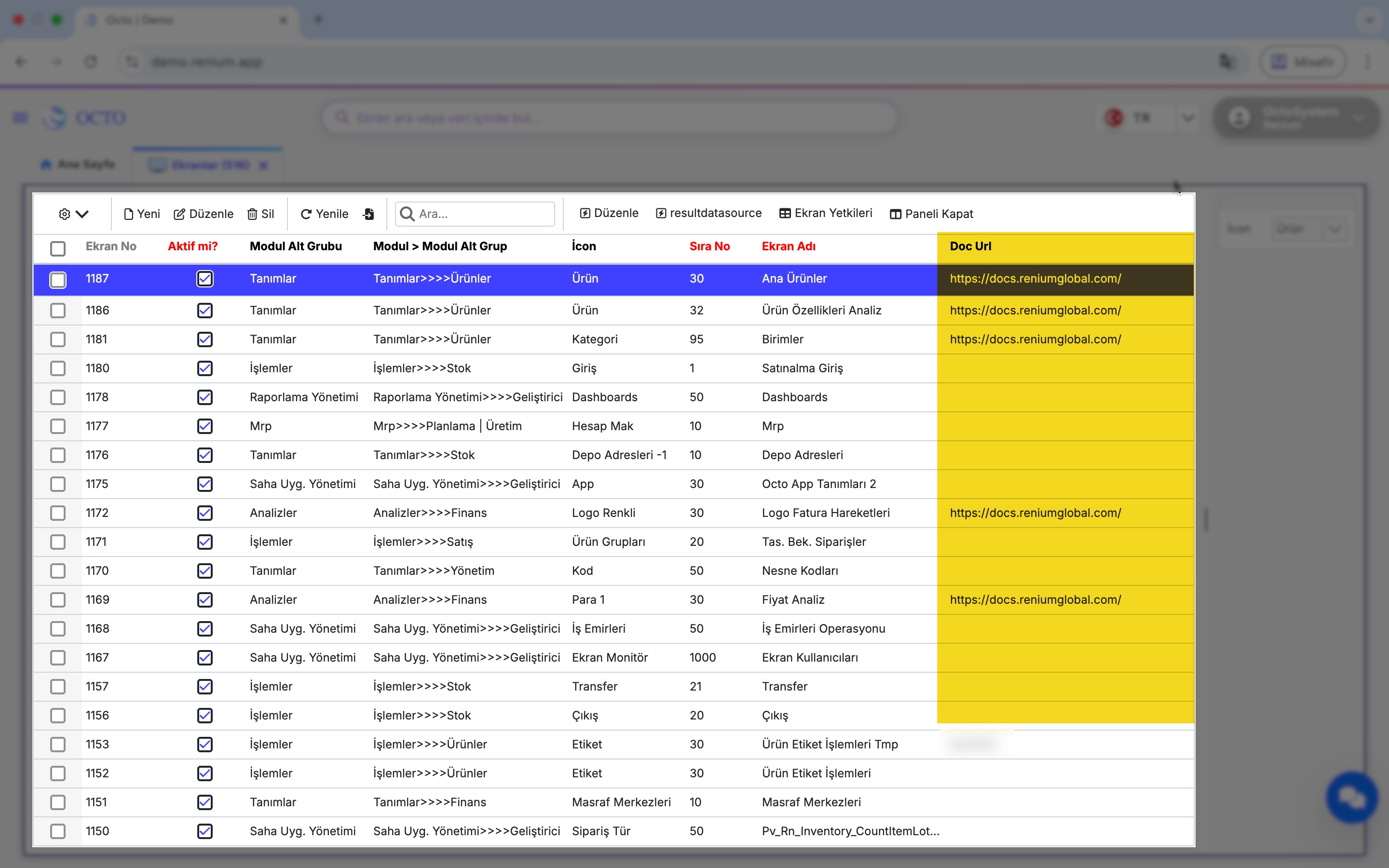
DocUrl: Represents the Doc Url defined for the record in the screen definition. Allows you to access the document related to the screen.