Account Settings
Creating an Account
User accounts are created and provided to you by users with the System Administrator role.
info
To learn how to add a new user or manage permissions for existing users, visit the Management page.
Through this module, you can:
- Manage the permissions of existing users
- Add new users and assign appropriate roles to them
Logging In
To log in using the credentials provided to you:
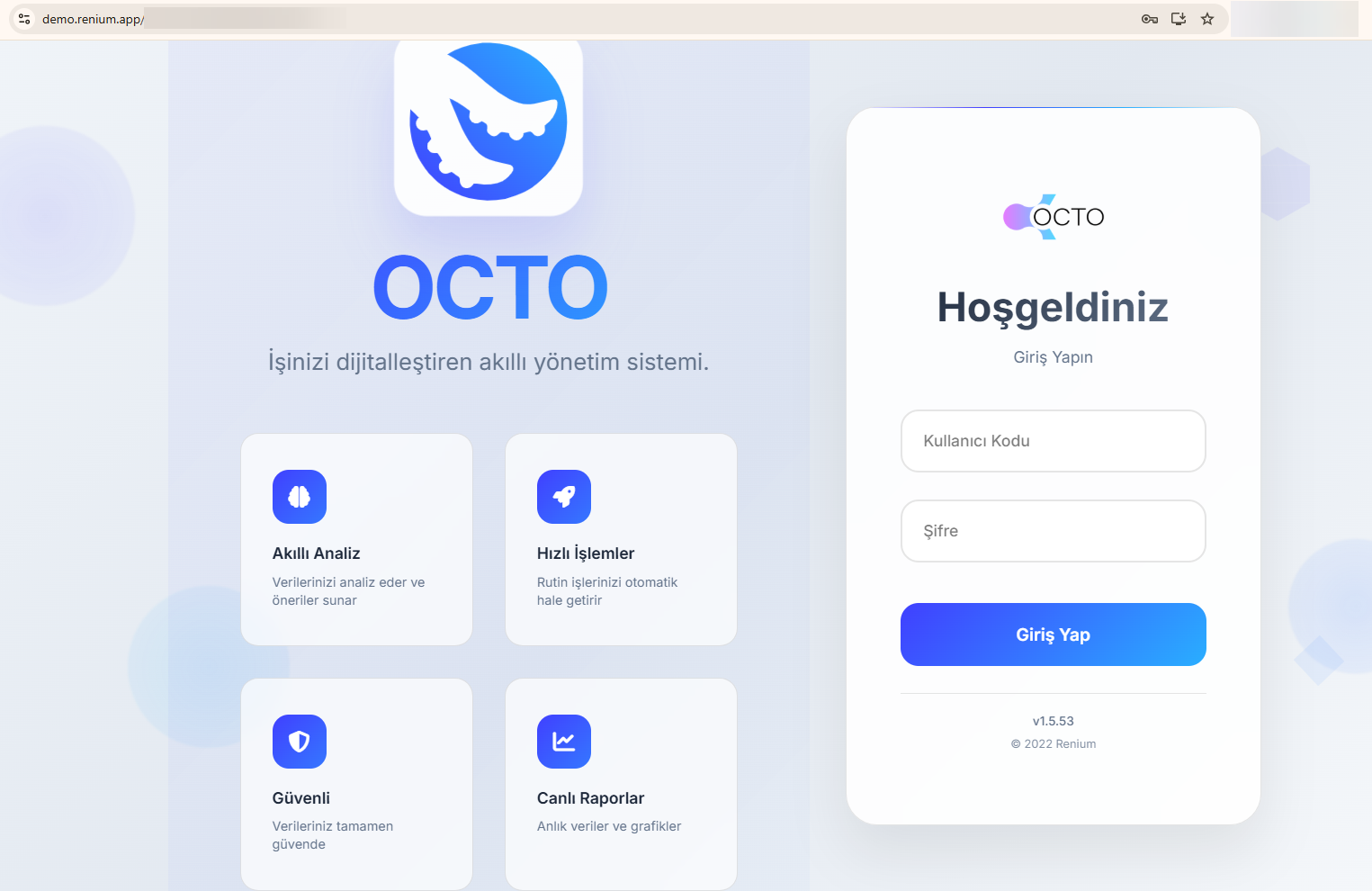
- Open your browser and go to your assigned Octo address to access the platform.
- Enter the account credentials you received in the respective fields and click the Login button.
- If your credentials are correct, you will be redirected to your account dashboard and can start using the platform.
tip
For your security, we recommend changing your password after your first login.
You can update it from the User Profile screen.
User Profile
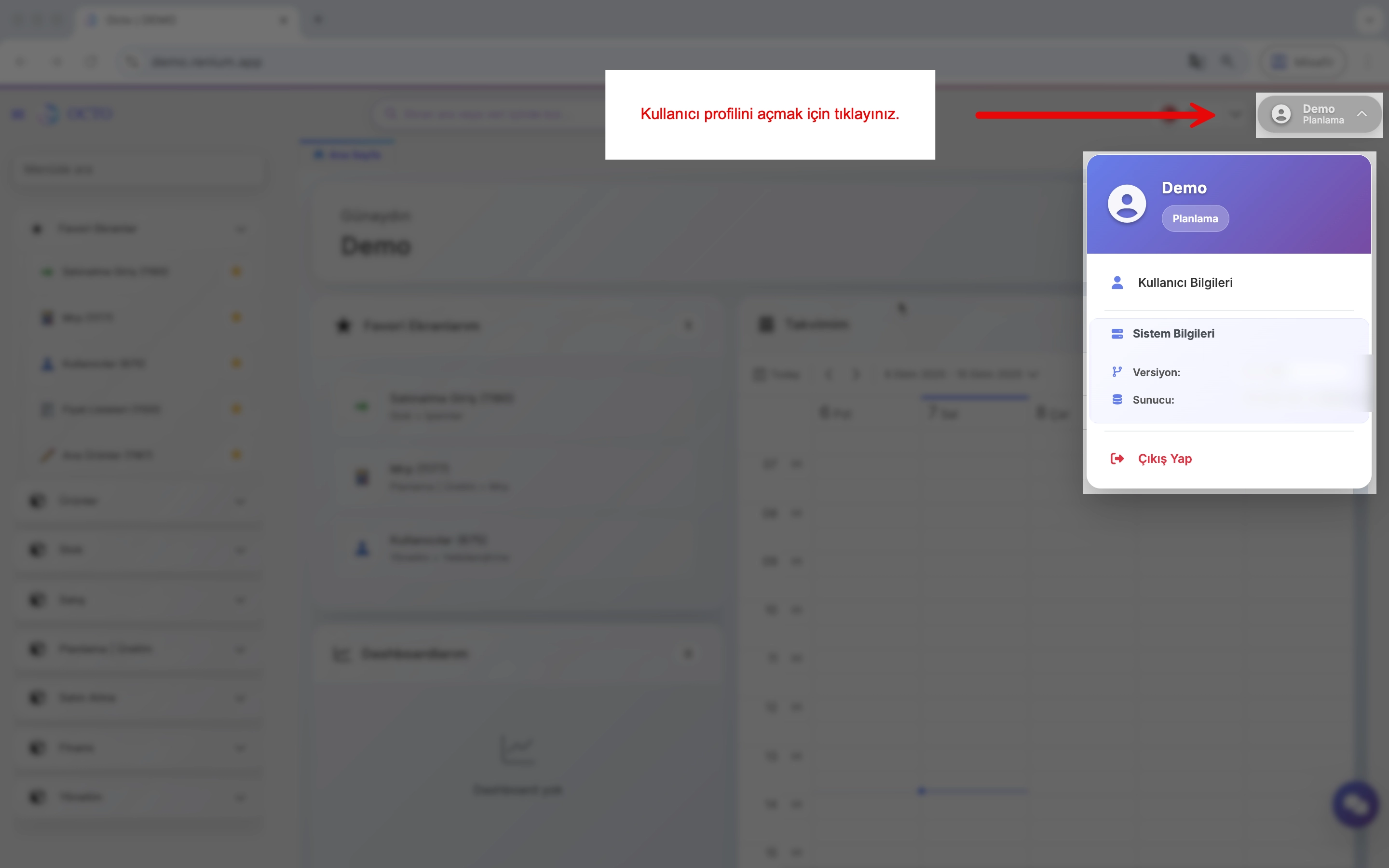
The User Profile menu can be accessed by clicking your username located at the top-right corner of the homepage.
The menu consists of three sections:
1. User Information:
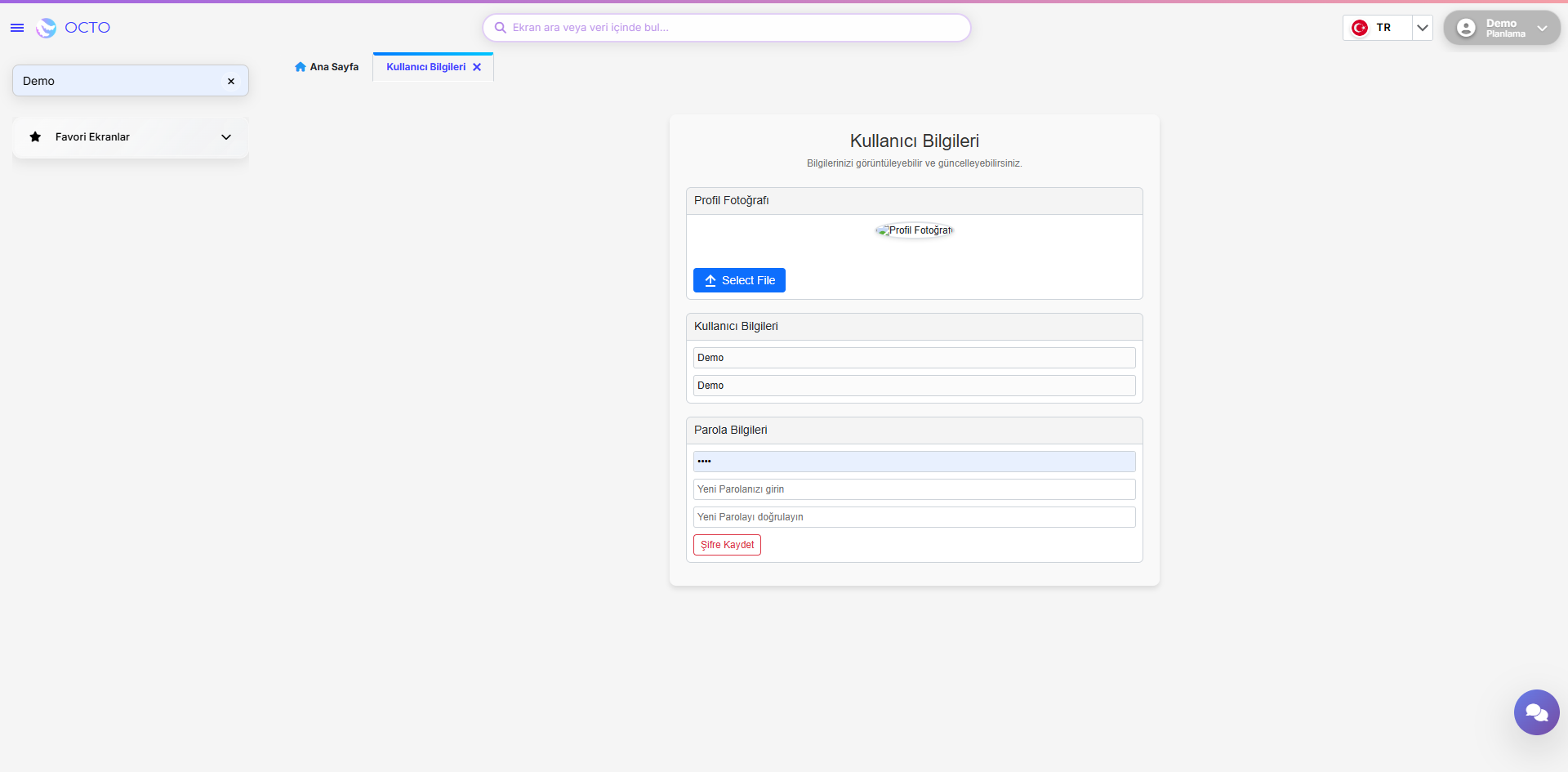
- Clicking this option opens the User Information tab on your homepage.
- Within this tab, you can view and update details related to your account:
- Profile Picture: View your current profile photo and upload a new one using Select File.
- User Details: See your account name and the role assigned to you within the system.
- Password Information: Change your password in this section.
2. System Information:
View technical details such as the platform version and server information.
3. Log Out:
Click this option to securely sign out of your account.